Getting started
This is the whole loop in one page: open the studio, get a maze you like on the canvas, paint it, then name it, save it, share it and take it home. Nothing to install, and nothing you do here can be lost by accident.
Open the studio#
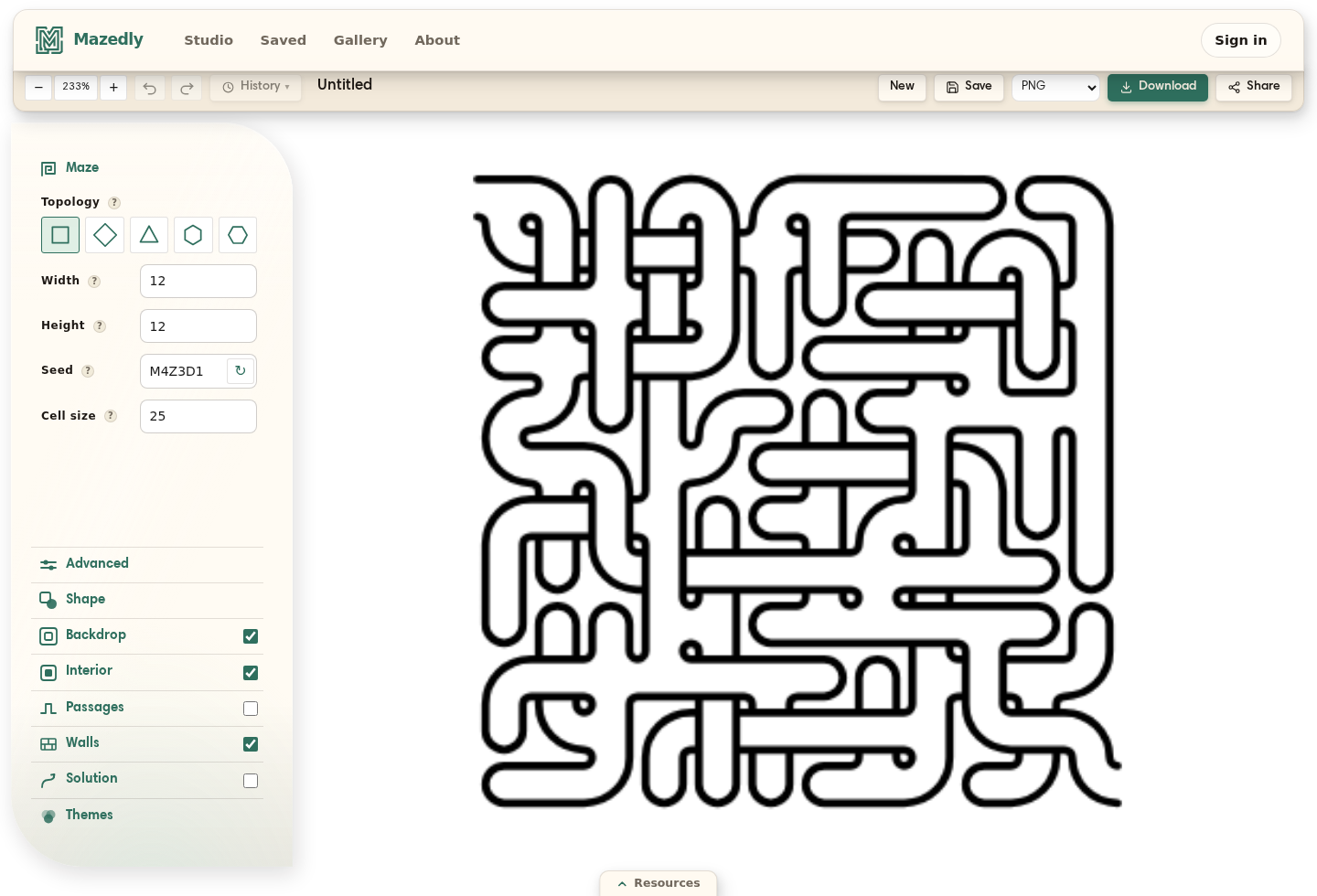
There is no blank page and no setup dialog. The moment the studio opens it starts weaving you a maze — square, 30 × 30 cells at 25 pixels each, entry in the northwest corner, exit in the southeast — while a welcome card rotates through a few things you can try. A second later the maze is on the canvas and it is yours to change.
What’s on screen#
Two things: the canvas, and a panel of sections beside it. The sections open one at a time — Maze, Advanced, Shape, Backdrop, Interior, Passages, Walls, Solution, Themes — with Maze already open. The first few decide what the maze is; the rest decide what it looks like. On a narrow screen — a phone, or a small window — the same sections live behind a rail of icons, and every word below still applies.
Pick a grid#
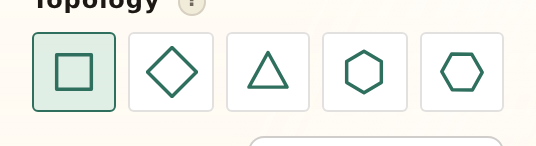
At the top of the Maze section is Topology — five little tiles rather than a dropdown, so you can see what you’re choosing: Square, Diamond, Triangle, Hex and Hex (flat). Each one is a genuinely different maze, not a skin — the corridors meet at different angles and the puzzle feels different to solve. Click a few. Topology has the tour.
Set the size#
Just below are Width and Height — how many cells across and down, anywhere from 4 to 120. Under them, Cell size is pixels per cell, from 6 to 120. That one is worth understanding early: it doesn’t change the puzzle at all, only how large the puzzle is drawn. A 40×40 maze is the same maze at 8 px a cell and at 80. See Size & seed.
The seed#
The Seed field holds a short code of letters and digits — the studio mints a fresh one for every new maze, and case doesn’t matter. The ↻ beside it (Randomize seed) rolls another. The rule is the useful part: the same code always makes the same maze. Type a code a friend sends you and you get their maze, exactly.
That’s reproducibility, and it’s why nothing here can be lost. A maze you made last year re-renders today, bit for bit, at whatever size you now need it. What is a maze seed? explains the mechanism.
Try a single path#
Before you start painting, open Advanced and find Single path — a dropdown with four settings. Off is the ordinary branching maze you already have. The other three build one continuous route with no junctions at all: Unicursal winds to the middle and back out, Serpentine visits every single cell, and Woven does the same while crossing over and under itself. Square and diamond grids only — see Unicursal mazes.
Give it some color#
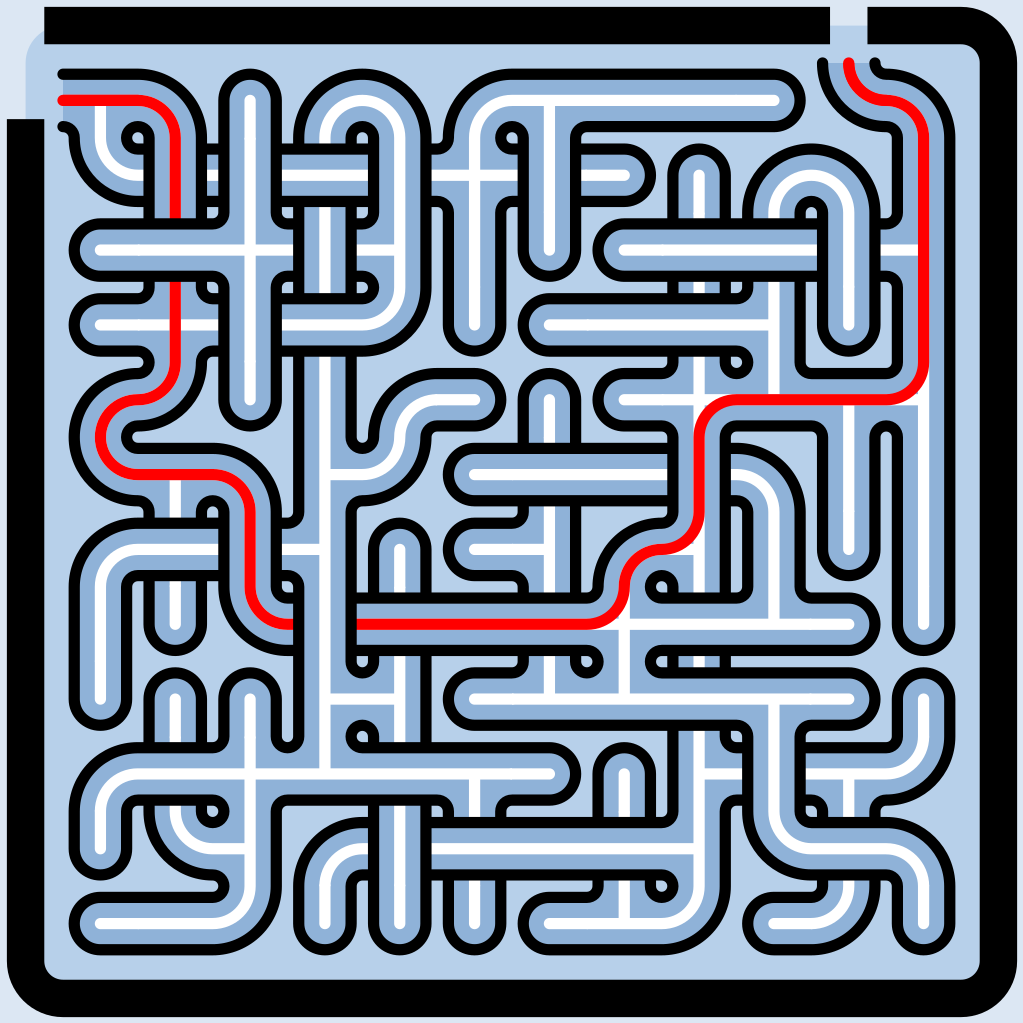
Now the fun part. Seven paint layers sit further down the panel — Backdrop (holding Canvas, Border and Background), then Interior, Passages, Walls and Solution. Each has its own color, its own width, its own corner style, and its own on/off. Every change repaints instantly — no Regenerate, no waiting. Layers shows each one isolated.
Name it and save#
Press Save. If the maze is still untitled, a small dialog asks first — Name your maze, Give it a title before you export or share. Give it one, and the button runs Saving… then settles on Saved. Your maze is now in Your mazes, and it stays there — the recipe, the seed and every color you chose.
Share it#
Share mints a link anyone can open — no account needed at their end. The page shows your maze with its title, and it carries an Open in Studio button: pressing it forks your maze into a copy of their own, so a design you liked can go on being built. Sharing serves the saved copy, so Share saves the maze first if you haven’t. Copy hands you the URL, and Revoke takes the link back whenever you want. More in Sharing & forking.
Download it#
Beside the Download button is a format picker: PNG, SVG (paid) and PDF (paid). PNG is free and is the right answer for a screen. SVG is the one to reach for when the maze is going somewhere physical — it scales to any size without ever going soft (Printing). Every download re-renders on the server at full quality, so the button reads Rendering… for a moment — what you get is not a screenshot of the canvas.
Where to next#
That’s the whole loop. Everything from here is depth rather than difficulty — pick whichever one you’re curious about.
- Topology — what each of the five grids is actually good for.
- Shapes & masks — grow a maze inside a heart, a letter, or any image you upload.
- Layers — the seven paint layers, each shown on its own.
- Passages & structure — loops, crossings and long corridors, for when you want it harder.
- Export formats — PNG, SVG, PDF and the maze document, and when to use which.